Once you have successfully installed Paymaster the next step
is to add your company. You will need to obtain an authorization code from
PayMaster for each company for which you do payroll. Only PayMaster support can
provide you with these authorization codes.
|
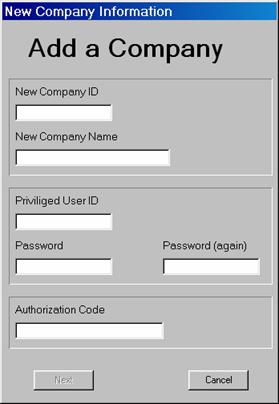
New Company ID: This is the short name of your
company for quick identification. Cannot start with a number. (Max 10 char)
New Company Name: This is the name associated with
your Federal EIN and the name that will appear on your W2s. (Max 30 char)
UserID/Password: You will need a username and
password for each company for which you do payroll. These are case sensitive.
(Max 16 char each)
Authorization Code: Enter the code provided to
you by PayMaster Support.
|
|
|
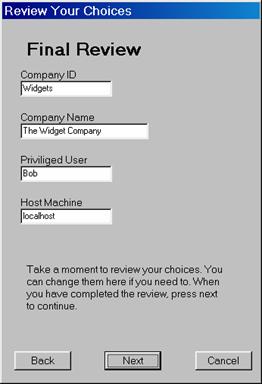
Note: By default the Host Machine is localhost,
which is the name of your local computer. If you installed MySQL on another
computer, a server for example, it would be the name of that server or the IP
address.
|
|
|
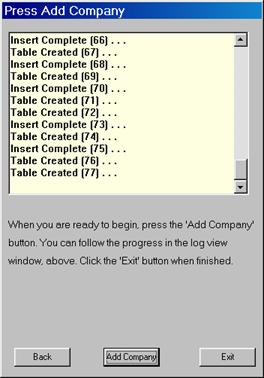
Press "Next" again, then "Add Company”.
You should be able to see the progress of the basic
database tables being created for your company. Once completed you are now
ready to begin setting up your company.
If you choose a different port from which to run MySQL you
will be prompted to enter it at this point.
|
|